You know that feeling? You drop hard-earned cash on a gaming PC, expecting smooth sailing, but instead, you get stuttering, lag, and those pesky low frame rates. Frustrating, right?
I’ve been there too. After years of diving into gaming setup performance, I’ve figured out what really works and what’s just hype.
This guide isn’t about throwing more money at your setup. Instead, it’s about making the most of what you already have. We’re cutting through the noise and focusing on efficiency.
I’ll share practical steps that can transform your gaming experience from the software up.
Trust me (I’ve modded and tweaked countless setups). We aren’t just listing settings. We’re building a smarter gaming machine.
Ready to open up your PC’s true potential? Let’s get started.
Easy Wins: Mastering Your OS for Gaming
Alright, let’s get real. Your operating system (OS) could be the silent killer of your gaming setup performance. Before you even launch a game, Windows might be sucking the life out of your system with unnecessary features and programs.
Crazy, right?
First off, have you tried Windows Game Mode? It’s like giving your PC a pep talk before the big match. It prioritizes game resources, basically telling all those pesky background tasks, “Hey, back off, I’m gaming here!” Turn it on by searching for ‘Game Mode’ in your settings.
Easy.
Now, let’s talk about startup programs. You wouldn’t try to take off with a cluttered runway, would you? Same goes for your PC.
Head over to the Task Manager (Ctrl + Shift + Esc), find those startup programs, and disable anything non-important. Seriously, do you need Spotify loading when you boot up just to play games?
Ultimate Performance. Sounds intense, huh? This power plan is designed for high-end systems craving that extra speed.
Go to Power & Sleep Settings, click on Additional Power Settings, and open up the ‘Ultimate Performance’ option. Your system might need this, especially if you’re running something hard-core.
And those flashy visual effects in Windows? Animations, transparency, those little eye-candies (ditch) them. They’re not just for show.
Go to System Properties, click on ‘Performance Settings,’ and adjust for best performance. This is what pro-gamers do to squeeze every last frame outta their setups. It works.
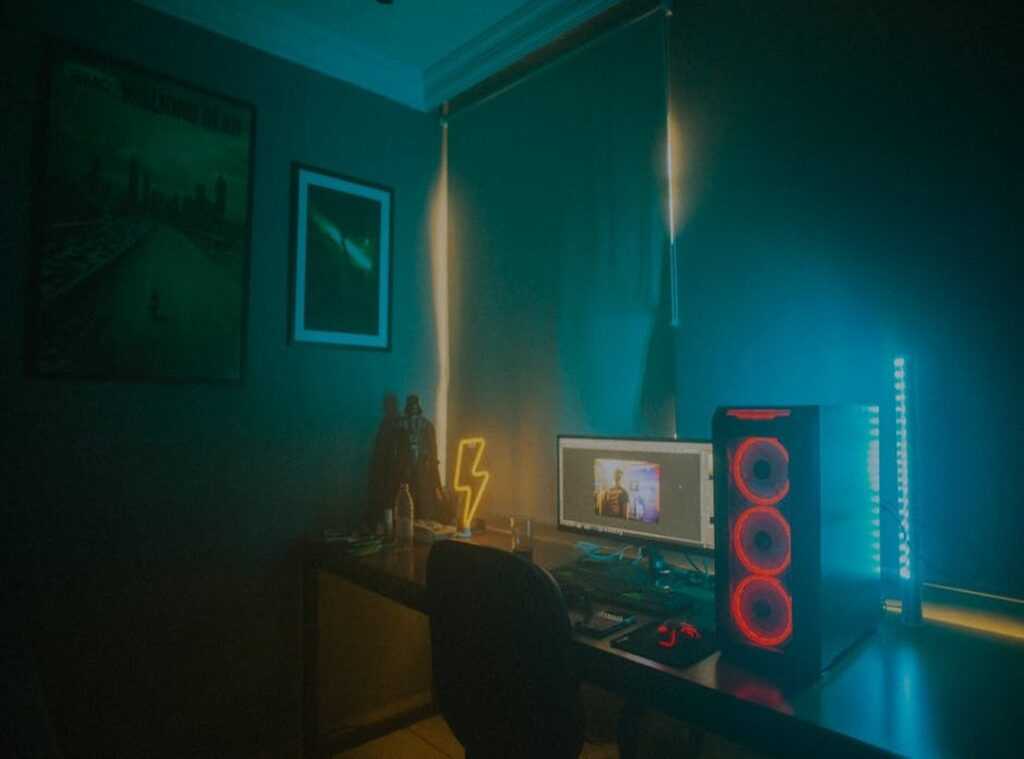
While you’re fine-tuning, don’t forget lighting. It’s not just about looks. Check out these lighting hacks ultimate gaming to improve the ambiance.
Once you master the OS quirks, your games will run smoother. And really, who doesn’t want that?
It’s all about clearing the path for a smooth launch. Ready for takeoff?
Driver Discipline: The Unsung Hero of High FPS
Let’s talk drivers. They’re the real MVPs in your gaming setup performance. Think of them as the key translators between your hardware and games.
If your GPU drivers are outdated, you might as well be playing with one hand tied behind your back. Seriously, they’re the number one reason your shiny new game might be lagging.
Updating GPU drivers is not as daunting as it sounds, and trust me, it’s worth it. For NVIDIA users, the GeForce Experience makes it a breeze. AMD folks, you’ve got the Adrenalin software.
It’s all about keeping things simple and clear. But what if the usual update doesn’t cut it? a “clean install” comes in. It’s a solid move.
Wipes out old, conflicting files and gives you a fresh start.
Now, I’m not saying other drivers don’t matter (chipset drivers from your motherboard manufacturer have their place). But let’s not get sidetracked. The GPU is our main concern today.
It’s easy to get overwhelmed with tech jargon, but focus on what impacts your game the most.
And hey, if you’re still scratching your head about where to start, you might want to check out how to improve your gaming pc setup. It’s a solid guide that can help you fine-tune everything. Remember, each small step can lead to big improvements.
So, are you ready to boost your FPS and get the most out of your games? Start with those drivers.
Decoding In-Game Settings: Tweak Your Way to Performance Glory
Does staring at the in-game settings menu make you feel like you’re trying to defuse a bomb? You’re not alone. Many gamers, especially those looking to boost their gaming setup performance, get overwhelmed by the options.
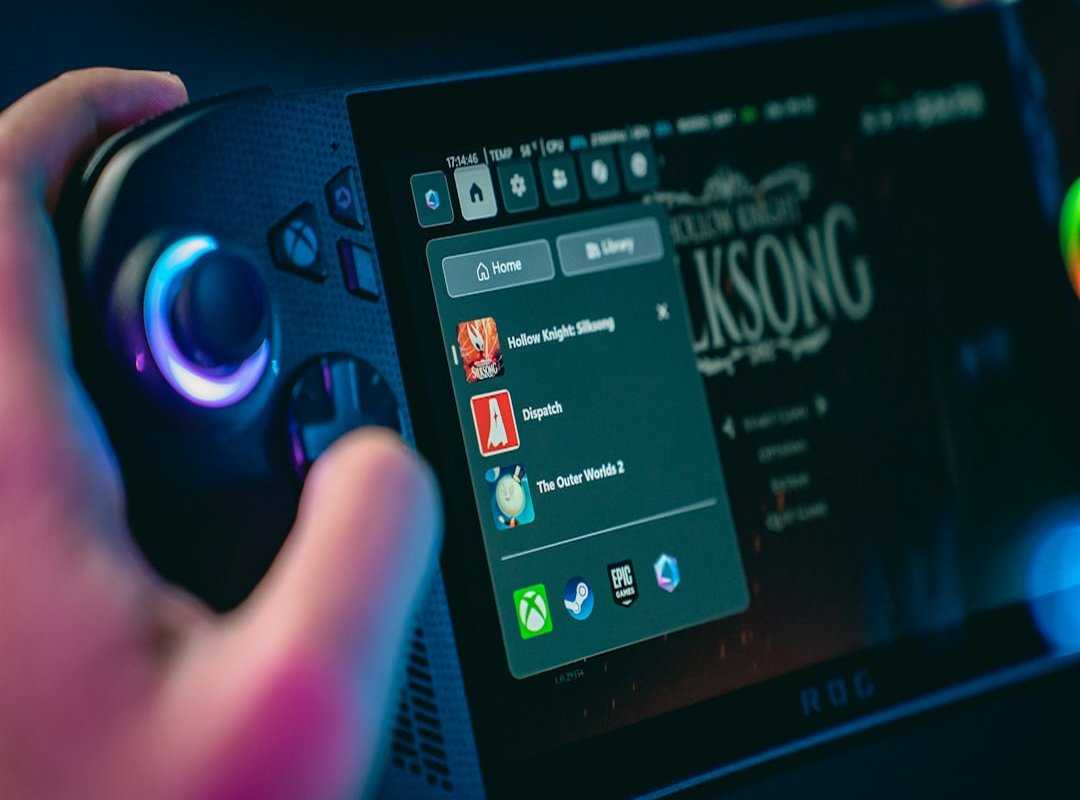
But fear not, I’m here to simplify the chaos. to the settings that truly matter and explain the trade-offs they bring.
First up, Resolution. It’s the king on the performance chessboard. Running games at native resolution means you’re maximizing detail, but it can also tank your frame rate.
Lowering resolution gives you smoother gameplay, but things might look a bit blurry. It’s about striking a balance. Do you want a sharp image or faster action?
Now, let’s talk Shadow Quality. Shadows add realism but are often the biggest frame rate thief after resolution. Lowering shadow quality can give you a surprising boost.
I mean, how important are those perfect shadows, really?
Texture Quality directly relates to your graphics card’s VRAM. If you’ve got a beast of a card, go wild. Otherwise, scale back to keep your system from chugging. You want a game that looks great but doesn’t freeze every five seconds, right?
And what about Anti-Aliasing (AA)? This is the tech behind “smoothing the jaggies.” FXAA is lighter on performance but softer around the edges. MSAA is sharper but more demanding.
Picking the right one can change your game visuals dramatically.
Next, View Distance or Draw Distance affects what your CPU and GPU have to render. It’s the difference between seeing that enemy from a mile away or just a few steps ahead. But watch out, maxing it out can throttle your machine.
Find a comfortable middle ground.
Now, you might be wondering how to judge all these tweaks. Here’s a pro tip: use built-in benchmarks or FPS counters. They let you test changes one at a time.
This way, you get a clear picture of what’s helping or hurting your game.
And don’t forget, a important accessories pro gamer setup can make all the difference. Whether you’re swapping resolutions or adjusting textures, these settings are your ticket to a better gaming experience. Play around with them, and soon you’ll know exactly what works best for you.
Is gaming about making the most of your rig? Absolutely.
Cool Your Rig: Simple Tweaks for Top Performance
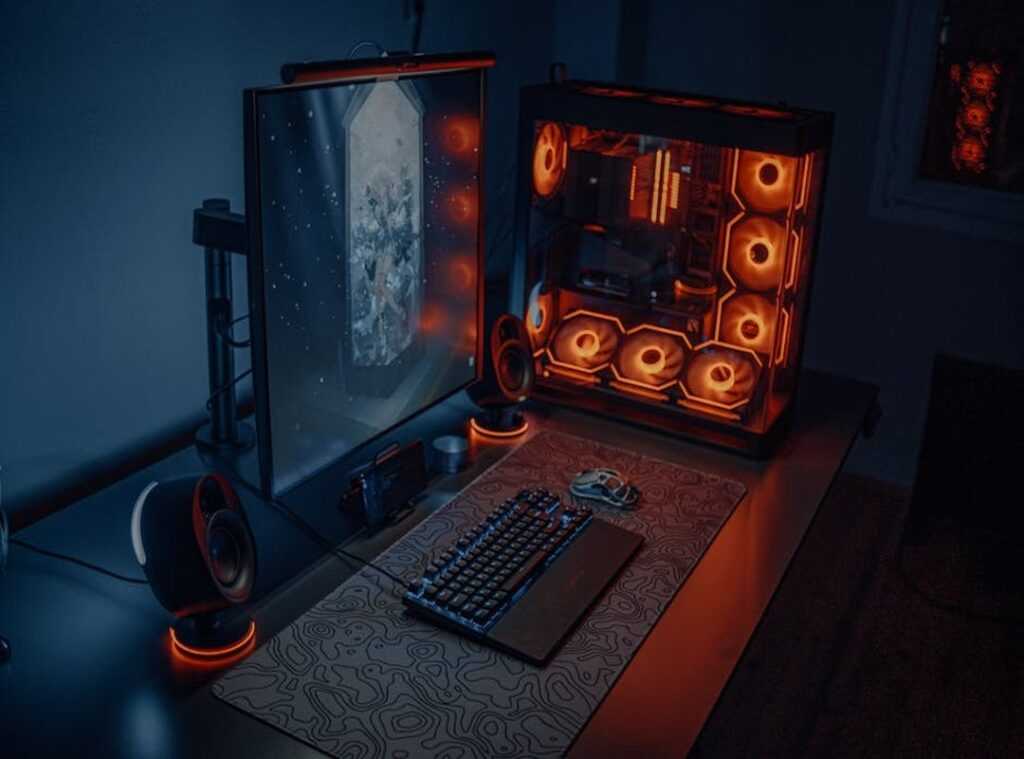
to the physical world of your gaming setup. Heat is the ultimate villain here. It sneaks in and slows everything down, leading to thermal throttling.
So, how can you fight back? Start by ensuring your case fans are pointing the right way. Sounds basic, right?
But it makes a world of difference. Also, clear any junk around the PC. Let the beast breathe.
Now, a gentle nudge: don’t forget those dust filters. Clean them up. It’s like wiping the sweat off your rig’s forehead.
When’s the last time you actually opened it up?
And here’s a pro tip. Let XMP (for Intel) or DOCP/EXPO (for AMD) in your BIOS. It’s a one-click wonder that ramps up your RAM to its advertised speed.
Free performance, anyone?
These tweaks can work wonders for your gaming setup performance. Sometimes, the smallest changes pack the biggest punch.
Take Control of Your Gaming Experience
Feeling stuck with underperforming hardware? You’re not alone. But here’s the thing: a smoother gaming session is in your hands.
Forget pricey upgrades. Real gains happen when you fine-tune your system. Improve your OS, update drivers, and tweak those in-game settings.
This plan boosts gaming setup performance without breaking the bank. Want proof? Pick one section from this guide and dive in now.
You’ll be surprised at the difference it can make.

 nm_cobra has opinions about platform play strategies. Informed ones, backed by real experience — but opinions nonetheless, and they doesn't try to disguise them as neutral observation. They thinks a lot of what gets written about Platform Play Strategies, Tech-Enhanced Game Mods, Hot Gaming Trends is either too cautious to be useful or too confident to be credible, and they's work tends to sit deliberately in the space between those two failure modes.
Reading nm_cobra's pieces, you get the sense of someone who has thought about this stuff seriously and arrived at actual conclusions — not just collected a range of perspectives and declined to pick one. That can be uncomfortable when they lands on something you disagree with. It's also why the writing is worth engaging with. nm_cobra isn't interested in telling people what they want to hear. They is interested in telling them what they actually thinks, with enough reasoning behind it that you can push back if you want to. That kind of intellectual honesty is rarer than it should be.
What nm_cobra is best at is the moment when a familiar topic reveals something unexpected — when the conventional wisdom turns out to be slightly off, or when a small shift in framing changes everything. They finds those moments consistently, which is why they's work tends to generate real discussion rather than just passive agreement.
nm_cobra has opinions about platform play strategies. Informed ones, backed by real experience — but opinions nonetheless, and they doesn't try to disguise them as neutral observation. They thinks a lot of what gets written about Platform Play Strategies, Tech-Enhanced Game Mods, Hot Gaming Trends is either too cautious to be useful or too confident to be credible, and they's work tends to sit deliberately in the space between those two failure modes.
Reading nm_cobra's pieces, you get the sense of someone who has thought about this stuff seriously and arrived at actual conclusions — not just collected a range of perspectives and declined to pick one. That can be uncomfortable when they lands on something you disagree with. It's also why the writing is worth engaging with. nm_cobra isn't interested in telling people what they want to hear. They is interested in telling them what they actually thinks, with enough reasoning behind it that you can push back if you want to. That kind of intellectual honesty is rarer than it should be.
What nm_cobra is best at is the moment when a familiar topic reveals something unexpected — when the conventional wisdom turns out to be slightly off, or when a small shift in framing changes everything. They finds those moments consistently, which is why they's work tends to generate real discussion rather than just passive agreement.