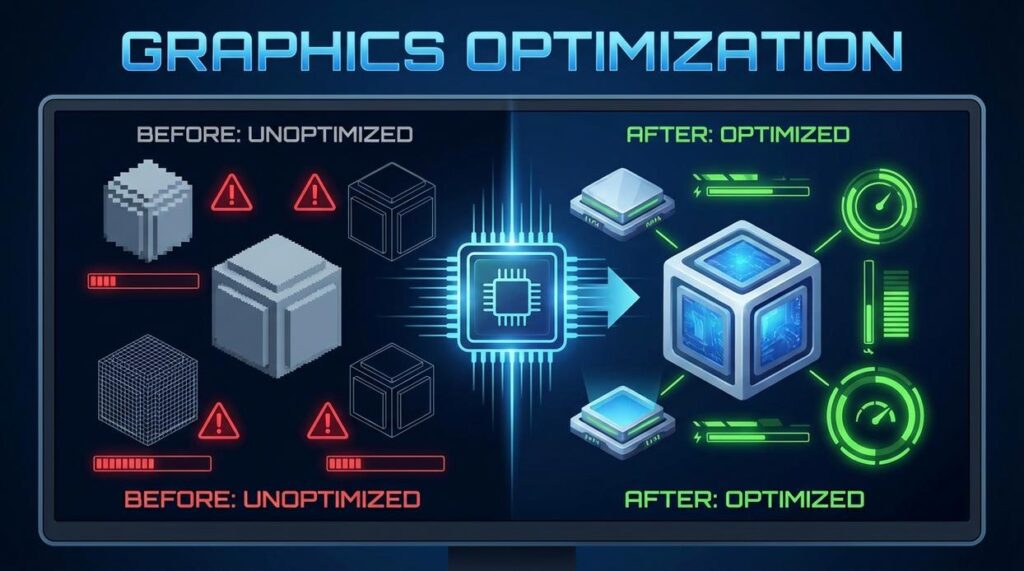
Staying ahead in today’s gaming landscape means more than just logging hours—it requires knowing which trends, tools, and tweaks actually improve your experience. If you’re searching for the latest hot gaming trends, practical modding guides, smarter play strategies, and ways to optimize your setup, this article is built for you. We break down what’s gaining traction in the gaming community, which upgrades are worth your time, and how to safely implement tech-enhanced modifications without compromising performance or stability.
You’ll also discover how to integrate performance boosting mods effectively, fine-tune your hardware and in-game settings, and gain a competitive edge through smarter configuration choices. Every recommendation is grounded in hands-on testing, community feedback, and proven optimization techniques used by experienced gamers. Whether you’re a competitive player or a casual enthusiast looking to elevate your setup, this guide delivers clear, actionable insights to help you play smarter, faster, and more efficiently.
Last year, I nearly quit competitive shooters because my PC kept stuttering mid-match. Nothing kills momentum like dropped frames. If you’re battling lag, inconsistent FPS (frames per second), or random freezes, you’re not alone. This guide shows how to unlock smoother gameplay using proven tweaks seasoned builders rely on—driver updates, background app cleanup, smart overclocking, and performance boosting mods. Some argue upgrades are the only fix. Not true. Strategic settings often deliver immediate gains (pro tip: enable XMP). Expect faster load times and responsiveness.
| Issue | Fix |
| Lag | Update GPU drivers |
| Stutter | Lower shadows |
The Digital Tune-Up: Essential Software Optimizations
Even the most powerful gaming rig can feel sluggish if your software is working against you. A proper digital tune-up focuses on specific system features that directly impact FPS, latency, and load times.
Taming Startup Processes
Open Task Manager → Startup tab and review programs labeled “Enabled.” Apps like launchers, chat clients, and auto-updaters quietly consume RAM before you even boot a game. Disable anything non-essential (right-click → Disable).
Some argue startup apps only add seconds to boot time. True—but they also reserve memory in the background. Freeing even 500MB of RAM can reduce stutter in memory-hungry titles like Cyberpunk 2077 (which recommends 12–16GB RAM per CD Projekt Red specs).
Background App Blitz
In Task Manager’s Processes tab, sort by CPU or Memory. End tasks you recognize as unnecessary. Don’t touch critical Windows processes (when in doubt, leave it).
Pro tip: Close browser tabs—Chrome is notorious for RAM usage (Google confirms each tab runs as a separate process).
Driver Discipline
Your GPU driver is the single most important update for gaming. NVIDIA, AMD, and Intel regularly release performance patches for new titles. Use GeForce Experience or AMD Adrenalin for clean installs. Updated drivers can improve performance by 5–15% in supported games (per NVIDIA release notes).
Windows Gaming Settings
Enable Game Mode (Settings → Gaming) to prioritize system resources. Turn on Hardware-accelerated GPU Scheduling (Graphics Settings) to reduce latency by offloading scheduling tasks to the GPU.
| Setting | Where to Find It | Benefit |
|———-|——————|———-|
| Game Mode | Settings > Gaming | Prioritizes game processes |
| GPU Scheduling | Graphics Settings | Lower input latency |
| Startup Disable | Task Manager | Frees RAM & CPU |
Visual Effects vs. Performance
Adjust Performance Options → Visual Effects → Adjust for best performance to disable animations and transparency. The boost is small—but noticeable during intense firefights (think Warzone endgame chaos).
Stack these tweaks with performance boosting mods for maximum gains.
Advanced Tuning for Maximum FPS
Power Plan Unleashed
Windows ships with Balanced, High Performance, and Ultimate Performance power plans. Balanced dynamically adjusts CPU speed to save energy. High Performance keeps clocks higher for responsiveness. Ultimate Performance removes most power-saving limits (originally designed for workstations).
In my opinion, Balanced is fine for office work—but for gaming, it’s leaving frames on the table. Switch to High Performance in Control Panel > Power Options. Ultimate Performance can be enabled via Command Prompt (powercfg -duplicatescheme e9a42b02-d5df-448d-aa00-03f14749eb61). If your cooling is decent, I think High Performance hits the sweet spot between stability and speed.
An Introduction to Safe Overclocking
GPU overclocking means increasing your graphics card’s core clock (processing speed) and memory clock (VRAM speed). Tools like MSI Afterburner make it simple.
Start small:
- +25 MHz core clock
- +50–100 MHz memory clock
Test with a benchmark after each bump. Crashes mean dial it back. I’m a fan of “boring stability” over flashy numbers (no one enjoys mid-match freezes). Done carefully, this is basically free FPS.
Unlocking RAM Speed with XMP/DOCP
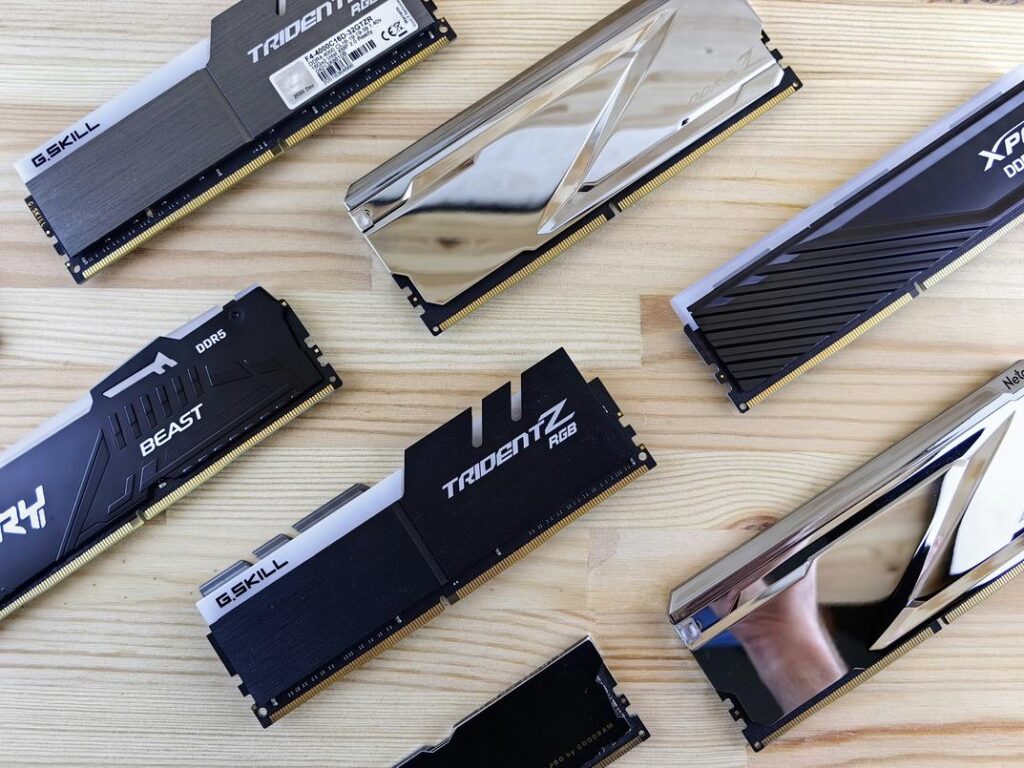
XMP (Extreme Memory Profile) is a BIOS setting that lets your RAM run at its advertised speed instead of defaulting lower. AMD boards label it DOCP. Enable it in BIOS/UEFI—this alone can noticeably improve minimum FPS. Honestly, I consider this mandatory.
Demystifying V-Sync, G-Sync, and FreeSync
Screen tearing happens when your GPU and monitor fall out of sync. V-Sync caps FPS to match refresh rate (but adds input lag). G-Sync and FreeSync are adaptive sync technologies that dynamically match refresh rate to GPU output. If your monitor supports it, use adaptive sync—it’s smoother and more responsive.
For even better results, combine these tweaks with performance boosting mods and optimizations like virtual reality mods bringing flat games into vr to push immersion and FPS further.
Strategic Hardware Upgrades That Deliver Results
The Storage Revolution (SSD vs. HDD)
If you’re still gaming on a traditional Hard Disk Drive (HDD), here’s the simple truth: it’s likely your biggest bottleneck. An HDD stores data on spinning disks, which means slower read/write speeds. An NVMe SSD (Non-Volatile Memory Express Solid State Drive) uses flash memory and a faster data pathway through your motherboard.
What does that mean in real life? Faster boot times, near-instant game loads, and smoother open-world streaming. Think shaving minutes off load screens in titles like Starfield. Some argue FPS doesn’t change much—and they’re right. But responsiveness absolutely does (and that’s half the battle).
RAM: The Multitasking Muscle
RAM (Random Access Memory) temporarily stores active data so your system can access it quickly. Today’s baseline for gaming is 16GB. Moving to 32GB helps if you stream, run Discord, edit clips, or use performance boosting mods.
Key clarification:
- Dual-channel RAM means using two matching sticks, allowing data to move more efficiently.
- Single-channel limits bandwidth (like driving on a one-lane highway).
Cooling Is King
Thermal throttling happens when components slow down to avoid overheating. Poor airflow or stock coolers can choke performance.
Entry-level tower air coolers or AIO (All-In-One) liquid coolers keep clocks stable. Stable temps = stable FPS.
CPU vs. GPU: What’s the Real Bottleneck?
If you game at 1080p high refresh rates (144Hz+), your CPU often matters more. At 4K ultra settings? The GPU does the heavy lifting.
Pro tip: Monitor usage. If your GPU sits at 99% while CPU lingers at 50%, upgrade the GPU first. If reversed, start with the CPU.
Upgrade strategically—not emotionally (yes, the RGB can wait).
Maintaining a High-Performance Gaming Rig
First things first, peak performance isn’t magic—it’s maintenance. A clean OS (operating system, the core software running your PC), smart hardware choices, and a bit of advanced tuning work together like a well-balanced raid squad. Miss one, and things fall apart fast (usually mid-boss fight).
That said, keep a simple routine. Monthly: check GPU and chipset drivers, clear temporary files, and uninstall mystery apps you don’t remember downloading. Quarterly: open the case and remove dust buildup—because your fans aren’t supposed to cosplay a vacuum cleaner.
Meanwhile, monitor your vitals. Tools like HWMonitor or MSI Afterburner track temperatures and usage so you can catch thermal throttling (when heat forces components to slow down) before your frame rate tanks.
Some argue modern systems “manage themselves.” Sure—until they don’t.
So go ahead: apply those software tweaks, test performance boosting mods, and treat this guide as your upgrade roadmap. Your FPS will thank you.
Level Up Your Game Without Limits
You came here looking for smarter ways to dominate your gameplay, optimize your setup, and tap into the hottest modding trends. Now you’ve got the insights to fine-tune your system, install performance boosting mods, and apply play strategies that actually give you a competitive edge.
Lag, low FPS, and underpowered builds can ruin even the best games. Falling behind because your setup isn’t optimized is frustrating — especially when other players are gaining advantages through smarter tech enhancements and modding techniques.
The fix? Take action. Start upgrading your setup strategically. Install trusted performance boosting mods, refine your in-game settings, and apply the optimization tactics you’ve just learned. Small technical tweaks can unlock massive gains.
If you’re serious about smoother gameplay, higher frame rates, and a setup built for peak performance, don’t stop here. Dive into more advanced mod guides, explore cutting-edge tech tweaks, and stay ahead of the curve with the latest gaming innovations.
Thousands of gamers rely on our proven strategies to eliminate lag, maximize power, and transform their rigs into high-performance machines. Now it’s your turn. Optimize your setup today and experience the difference immediately.