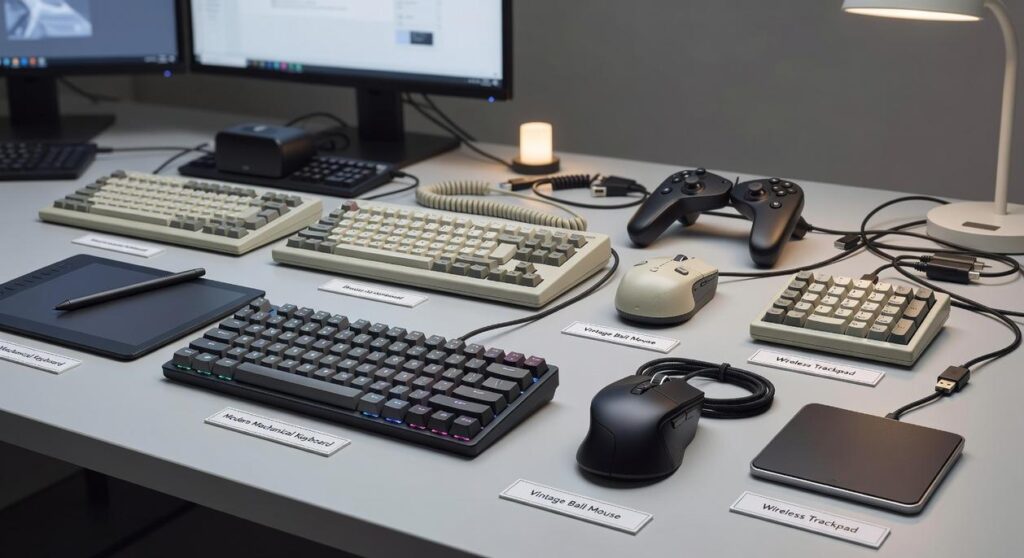

Your keyboard has more potential than you think. With the right adjustments, it can become a precision gaming weapon instead of a basic input device. This guide shows you how to transform a standard setup into a high-performance tool through smart software tweaks and strategic customization. Default settings often create unnecessary latency, inefficient key placement, and long-session discomfort—holding you back in competitive play. We break down proven techniques, including optimized keybindings for gaming, responsiveness enhancements, and ergonomic refinements designed to match your unique playstyle. If you’re looking for a real competitive edge, this blueprint delivers exactly what you need.
The Hidden Cost of Default Keyboard Settings
Out of the box, your keyboard is built for essays and emails—not clutch moments in overtime. Manufacturers prioritize comfortable typing, which means longer key travel and higher actuation points (the distance a key must travel before it registers). That’s fine for drafting reports. It’s not ideal when a split-second dodge decides the match.
Then there’s hidden latency. Polling rate—how often your keyboard reports inputs to your PC—can introduce subtle delay. I’ll be honest: not everyone agrees on how noticeable this is, and in some setups the difference is marginal. Still, competitive players consistently favor higher polling rates for a reason (even a few milliseconds can matter).
Meanwhile, default keybinds often force awkward reaches—think stretching to hit 6–9 mid-fight. That wasted motion adds up. Over time, switching to optimized keybindings for gaming reduces finger travel and reaction strain. In fast-paced titles, efficiency isn’t optional—it’s the edge.
The Core Four: Essential Keybinds and Macros for Any Game
Great gameplay starts with great control. If your fingers are stretching like Reed Richards just to throw a grenade, it’s time to rethink your layout.
Strategic Key Remapping
Key remapping means moving important actions from awkward keys to places your hands naturally rest. For example:
- Map “G” (grenade) to a mouse thumb button
- Swap “C” (crouch) to Shift for faster slides
- Move melee to E for tighter reaction timing
The goal is reducing finger travel time (the milliseconds your hand leaves WASD). In competitive games, those milliseconds matter—just ask any Valorant player who got one-tapped mid-reload.
Some argue default layouts are “good enough.” Sure, defaults work—like factory settings on a phone. But optimized keybindings for gaming tailor controls to you, not the average player.
Creating Your First Macro
A macro is a programmed sequence triggered by one key. Think of it as a shortcut playlist for actions.
Non-cheating examples include:
- Buying full gear in CS:GO with one press
- Triggering a crafting rotation in an MMO
Keep it ethical: if it automates skill-based gameplay, it crosses the line (and possibly the Terms of Service).
The “Action Layer” Concept
An action layer uses a modifier key (like Caps Lock or a side mouse button) to unlock a second command set. Hold the modifier, and WASD can become ability triggers instead of movement. It’s like Doctor Strange opening a portal—same hands, new dimension.
Profile Switching
Create separate profiles per game or character class. Swap instantly depending on what you’re playing. (Pro tip: color-code RGB lighting per profile so you always know where you are.)
Beyond the Basics: Fine-Tuning Polling Rate, Actuation, and Lighting
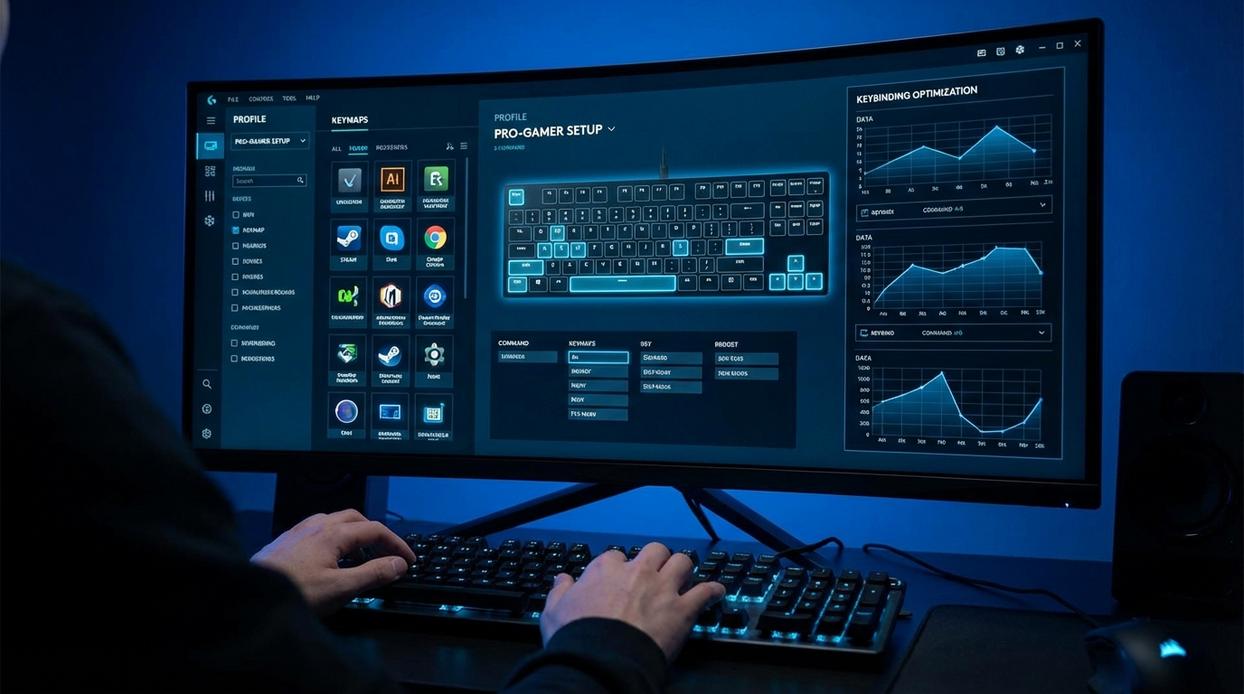
Have you ever wondered why two players with similar skills can feel worlds apart in responsiveness? Often, the difference isn’t talent—it’s tuning.
1. Polling Rate Explained (Hertz)
Polling rate (measured in Hertz) is how often your keyboard or mouse reports input to your PC. A 125Hz device updates every 8 milliseconds. A 1000Hz device? Every 1 millisecond. That means the system receives your commands up to eight times faster, reducing perceived input lag (the delay between pressing a key and seeing the action on screen).
Some argue the difference is negligible. And yes, casual players might not notice it. But in competitive shooters or MOBAs, where milliseconds decide gunfights, higher polling can feel like switching from standard definition to HD.
2. Adjustable Actuation Points
With optical or Hall effect switches, you can lower the actuation point—the distance a key must travel to register—from around 1.5mm to 0.8mm. That’s nearly instant activation. Perfect for strafing, peeking, and quick resets.
Is it too sensitive? Possibly. But once paired with optimized keybindings for gaming, it becomes a precision tool rather than a liability.
3. Rapid Trigger Functionality
Rapid Trigger resets a key the moment it starts traveling upward. Instead of waiting for a full reset point, you can re-activate mid-motion. In rhythm or movement-heavy games, this can dramatically increase speed and consistency (think osu! or fast-twitch shooters).
4. Functional RGB Lighting
Finally, RGB isn’t just eye candy. Why not color-code cooldown abilities, highlight movement keys, or switch profiles per game? For competitive climbers exploring mobile gaming strategies for high rank climbing, visual cues can sharpen reaction time.
So ask yourself: are you playing the game—or is your hardware holding you back?
Game-Specific Blueprints: Optimizing for FPS, MMO, and MOBA
I still remember losing a clutch round in a ranked shooter because I fat-fingered the Windows key (instant desktop—instant defeat). That’s when I started dialing in optimized keybindings for gaming instead of relying on defaults.
FPS Setup
For first-person shooters (FPS—games centered on real-time gunplay from your character’s viewpoint), prioritize movement and weapon swapping. Use a low actuation point (the distance a key travels before registering) to shave milliseconds off strafes. Remap “use” and “melee” to mouse buttons and disable the Windows key entirely.
MMO Setup
In MMOs (persistent online worlds with ability-heavy combat), efficiency wins. I group 20+ abilities around WASD using a modifier key like Shift. RGB cooldown cues help track rotations at a glance (surprisingly clutch during raids).
MOBA Setup
For MOBAs (team-based arena battlers), enable quick-cast and bind items to Q, E, R, or F. I also macro complex combos—carefully—to keep reactions snappy without overcomplicating inputs.
Your Optimized Setup is Ready for Battle
You came here looking for an edge—and now you have one. With optimized keybindings for gaming, smart macros, and precise hardware tweaks in place, your setup is no longer holding you back. The frustration of missed inputs and delayed reactions wasn’t a skill issue—it was a configuration problem. Now, your keyboard responds as fast as you think.
Load up your game and apply each change step by step. Feel the difference immediately.
If you’re serious about dominating every match, don’t stop here. Explore more elite setup tweaks and proven strategies trusted by thousands of competitive players—upgrade your performance today.