
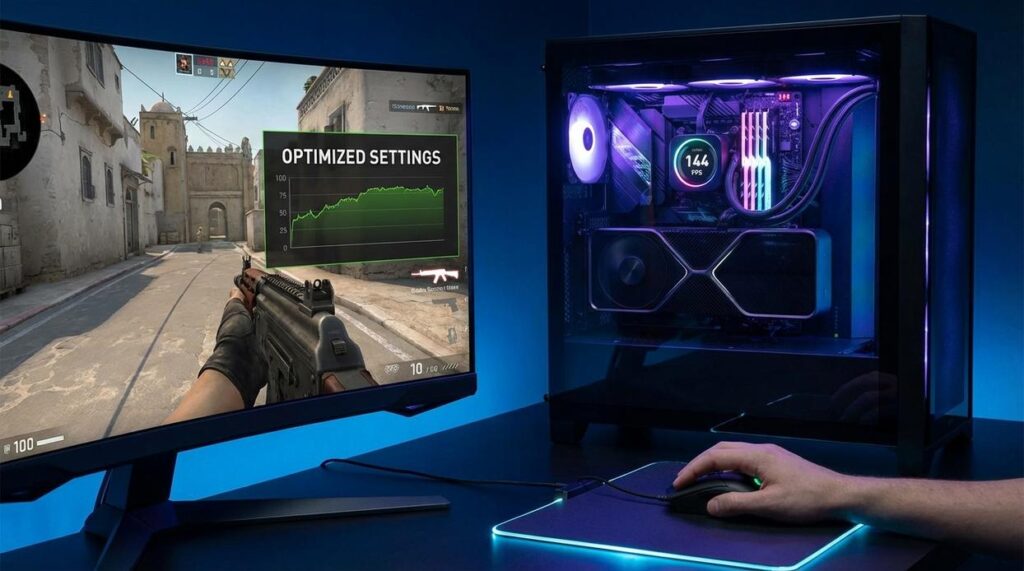
If you’re searching for ways to get smoother gameplay, higher FPS, and a competitive edge, you’re in the right place. Many players focus on hardware upgrades and flashy mods—but often overlook the hidden game settings advantage that can dramatically improve performance and responsiveness without spending a dime.
This article is built for gamers who want practical, results-driven tweaks. We break down the most impactful in-game settings, smart mod integrations, and optimization strategies that actually make a difference—whether you’re chasing higher frame rates, better visibility, or tighter controls.
Our recommendations are based on hands-on testing across popular titles, performance benchmarking, and real-world modding experience. Instead of repeating generic tips, we focus on adjustments that consistently deliver measurable improvements.
By the end, you’ll know exactly which settings to change, which enhancements are worth your time, and how to fine-tune your setup for smoother, sharper, and more competitive gameplay.
Tuning Your Graphics Menu
Default settings are safe, but they are not built for your rig. “Why is my game stuttering?” a friend asked me. First, lower shadows and disable motion blur; those two options often free up major FPS, especially on midrange GPUs. Next, tweak texture quality to match your VRAM limit to avoid spikes. Some argue max settings equal better gaming, but smoother frames win fights (just ask any competitive player). As one streamer put it, “Frames are king.” Finally, hunt for the hidden game settings advantage like resolution scaling or FOV sliders to balance clarity and speed.
The Pre-Launch Checklist: System-Level Optimizations
Before you blame lag on the game, check your system. Think of this as tuning a car before race day (because no one wins with the parking brake on).
Update Your Graphics Drivers
Old drivers vs. latest drivers is the difference between “playable” and “buttery smooth.” NVIDIA, AMD, and Intel release game-ready updates optimized for new titles, often boosting performance and fixing stability issues (NVIDIA regularly documents measurable FPS gains in release notes). Skipping updates means leaving performance on the table.
Optimize Your OS
Default Windows settings prioritize balance. Performance mode prioritizes frames.
- Enable Game Mode to reduce background activity.
- Disable unnecessary startup programs in Task Manager.
- Switch Power Plan to High Performance.
Balanced mode saves energy; High Performance saves your K/D ratio.
Check Your Display Settings
60Hz vs. 144Hz isn’t subtle—it’s night and day. Confirm your monitor’s refresh rate in Windows Advanced Display Settings and your GPU control panel. Otherwise, you’re missing a hidden game settings advantage.
Performance First: Key Settings for Maximum FPS

If you care about smooth gameplay, FPS (frames per second) is king. Higher FPS means lower input lag and smoother motion—crucial in competitive shooters and fast-paced RPGs alike. Let’s break down the settings that matter most, and where most guides stop short.
Resolution: The #1 Performance Factor
Resolution determines how many pixels your GPU renders. More pixels = sharper image = heavier workload. Dropping from 1440p to 1080p can boost FPS by 20–40% depending on the title (TechPowerUp GPU scaling benchmarks).
Modern alternative? Render scaling. This keeps your UI at native resolution while internally rendering at a lower percentage (like 85%). You gain performance without the blurry menus. Pro tip: adjust in 5% increments instead of jumping straight to 70%.
Shadow Quality: The Silent FPS Killer
Shadows constantly update based on lighting and movement, making them computationally expensive. High or Ultra shadows can cost 10–25% FPS (NVIDIA performance guides).
Lowering shadow resolution or switching to medium often delivers a major boost with barely noticeable visual loss during real gameplay (you won’t notice mid-gunfight).
Texture Quality: A VRAM Balancing Act
Textures rely on VRAM (video memory). If your GPU has 8GB, setting textures beyond that causes stuttering due to memory swapping.
- 4GB VRAM: Medium textures
- 6–8GB VRAM: High
- 10GB+: Ultra (if stable)
Monitor VRAM usage in-game to avoid hitching—this is a hidden game settings advantage most players ignore.
Anti-Aliasing (FXAA vs. TAA vs. MSAA)
Anti-aliasing smooths jagged edges.
- FXAA: Lightweight, slightly blurry, ideal for older GPUs
- TAA: Best balance for modern engines
- MSAA: High clarity, heavy performance hit
For most modern games, TAA offers stability without crushing FPS.
View Distance & Foliage Density
Open-world games render objects far into the distance. High settings increase CPU and GPU load significantly.
Find the sweet spot: Medium view distance and slightly reduced foliage often preserve immersion while stabilizing frame times. Think cinematic smoothness over unnecessary detail—because winning the fight beats admiring every leaf.
Customization & Visuals: Fine-Tuning Your Experience
When it comes to visuals, small tweaks can dramatically change how a game feels—and performs.
Field of View (FOV)
Field of View (FOV) controls how much of the game world you see on screen at once. Increasing the FOV slider expands your peripheral vision, which can make movement feel faster and more fluid. Competitive players often prefer a higher FOV because spotting enemies at the edge of your screen a split second earlier can decide a match.
Some argue that a high FOV causes distortion or lowers performance. That’s partially true—extreme values can create a “fish-eye” effect and cost a few frames. However, for most modern GPUs, the awareness boost outweighs the minor hit.
Post-Processing Effects
Motion Blur simulates camera streaking during fast movement. Bloom adds a glow to bright light sources. Lens Flare mimics how cameras react to direct light. These are cinematic effects designed for immersion.
But here’s the trade-off: clarity. Many gamers disable them because they soften image sharpness and introduce visual noise. In fast-paced shooters especially, turning them off creates a cleaner, more responsive view (think less Hollywood, more esports arena).
Anisotropic Filtering
This is a low-cost, high-impact setting. Anisotropic filtering sharpens textures viewed at an angle—like roads stretching into the distance. Performance impact is minimal, but clarity gains are obvious. Pro tip: set it to 8x or 16x if available.
Sync Technologies
Screen tearing happens when your GPU and monitor refresh out of sync, splitting frames visually. V-Sync locks frame output to your monitor’s refresh rate but can add input lag. G-Sync and FreeSync use variable refresh rate (VRR) technology to dynamically match frames, reducing tearing without as much lag.
If you have a compatible monitor, VRR is the smarter choice. V-Sync? Use it as a last resort.
And remember, mastering these tweaks is a hidden game settings advantage—just like refining your mechanics with pro gamer warm up routines you can try today.
Beyond the menu, config files like .ini or .cfg let you tweak parameters developers leave out of sight. Essentially, they’re plain-text blueprints that store a game’s technical settings. For example, you can uncap framerates, disable startup videos, or fine-tune mouse sensitivity down to decimal precision. In my experience, that hidden game settings advantage often feels like discovering a director’s cut of your favorite film. Still, is it worth the risk? Sometimes critics argue menu limits exist for stability—and they’re right. So always back up the original file before editing, preventing crashes, corrupted saves, or stubborn launch errors down the line.
Your Game, Your Rules: The Final Check
You now have the knowledge to ditch default presets and tune every slider to your hardware and taste. Contrary to popular belief, max settings are not a badge of honor; smooth performance wins battles. After all, lag ruins immersion faster than lower shadows ever will. Start with resolution and shadows, then tweak textures and post-processing. This methodical approach unlocks your PC’s hidden game settings advantage without costly upgrades. Meanwhile, ignore the myth that tweaking is risky; experimentation is how pros optimize. So launch your favorite game now and feel the difference immediately today.
Level Up With the Edge Most Players Miss
You came here looking for smarter ways to gain an edge in your favorite games—and now you know exactly where that edge lives. From optimized setups to smarter mod integration and performance tweaks, you’ve seen how small adjustments can unlock serious results.
The real frustration isn’t losing—it’s knowing you could be playing better. Most gamers never tap into the hidden game settings advantage, and that’s why they stay stuck with average performance, slower response times, and missed opportunities.
Now you don’t have to.
If you’re ready to stop guessing and start dominating, dive into our latest mod guides, optimization breakdowns, and pro-level setup strategies. We’re trusted by competitive players who want real performance gains—not fluff.
Don’t settle for default settings. Upgrade your game, fine-tune your setup, and unlock the advantage today.