If you’re searching for a gaming audio setup guide, you’re likely tired of muddy footsteps, distorted explosions, or teammates who sound like they’re talking through a tunnel. Competitive edge and full immersion both depend on crystal-clear, well-balanced audio — yet most gamers rely on default settings and generic advice that barely scratches the surface.
This article is built to change that. We break down exactly how to optimize your headset, microphone, in-game audio settings, and external gear for sharper positional awareness and richer sound depth. Whether you’re fine-tuning for competitive FPS precision or immersive open-world gameplay, you’ll find step-by-step guidance designed to improve real performance — not just boost volume.
Our recommendations are based on hands-on testing across popular titles, analysis of pro-player setups, and deep dives into how game engines handle spatial audio. Instead of vague tips, you’ll get practical adjustments you can apply immediately.
By the end, you’ll know how to eliminate audio bottlenecks, maximize clarity, and create a setup that gives you both immersion and a measurable competitive advantage.
Unlock Your Competitive Edge: The Ultimate Gaming Audio Setup
Audio is gaming’s most underrated weapon. We obsess over GPUs and 240Hz monitors, yet ignore the tool that tells us where danger is before we see it. In competitive titles, a single, precise footstep can mean the difference between clutching the round or watching the respawn screen (again).
Most players stick with default settings, leaving spatial cues muddy and cinematic soundtracks flat. That costs you awareness—and immersion.
This gaming audio setup guide walks you step-by-step through optimizing gear, settings, and positioning so sound becomes a strategic asset. The payoff? Faster reactions, deeper immersion, and a measurable competitive edge across every match you play.
Your Gear Matters: Selecting the Right Headset and Mic
I learned this the hard way. During a ranked match, my squad kept asking me to repeat callouts. By the time they understood “flank left,” we were already wiped. Turns out my cheap mic made me sound like I was broadcasting from inside a cereal box. Lesson learned.
Headsets vs. Headphones & Dedicated Mic
A headset (headphones with a built-in microphone) is the all-in-one solution. It’s convenient, portable, and usually more affordable. Plug in and play—no fuss.
Separate headphones and a dedicated mic offer higher audio fidelity (sound accuracy and detail) and clearer vocal pickup. Many streamers prefer this combo because it captures subtle in-game cues and delivers broadcast-level voice clarity. The trade-off? More desk space and more cables (your setup starts looking like a sci-fi lab).
Key Headset Features for Gaming
-
Open-Back vs. Closed-Back
Open-back headsets allow air and sound to pass through the ear cups, creating a wider soundstage (the perceived space and direction of audio). Amazing for immersive RPGs. Closed-back seals you in, blocking outside noise—perfect for competitive matches where focus is everything. -
Wired vs. Wireless
Wired means zero latency and no charging. Wireless offers freedom with near-imperceptible delay—modern models have largely closed the gap.
The Microphone Check
A clear mic with noise cancellation filters background sounds like fans or keyboard clatter. In team play, clarity equals coordination—and coordination wins games.
If you’re serious, treat your setup like a strategy. A solid gaming audio setup guide can help you avoid the mistakes I made.
Dialing It In: Mastering Your PC and Console Audio Settings
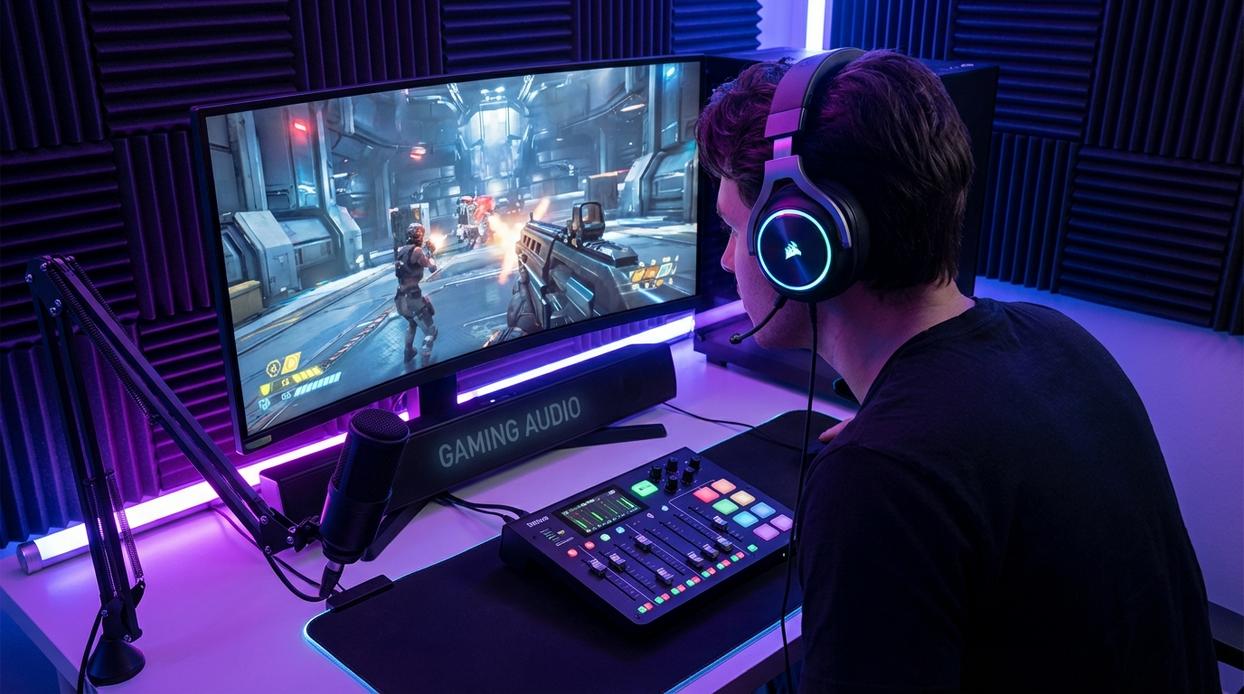
Before tweaking sliders or buying new gear, start with the foundation: update your audio drivers. Drivers are the software bridge between your operating system and your sound hardware. When they’re outdated, you can experience latency (audio delay between action and sound), crackling, or even distorted output. In contrast, updated drivers often improve stability and performance. On Windows, open Device Manager → Sound, video and game controllers → Right-click your device → Update driver. Alternatively, check your motherboard or headset manufacturer’s website for the latest version.
Next, head to your system’s Sound Control Panel.
Set Your Default Device
It sounds obvious, yet many players skip this. Ensure your correct headset is selected for both Playback and Recording. Speakers as default mic? It happens more than you’d think (and yes, your squad will notice).
Optimize Audio Quality
Under Properties → Advanced, set your sample rate and bit depth to 24-bit, 48000 Hz. Sample rate determines how often audio is captured per second; bit depth affects dynamic range (the difference between quiet and loud sounds). 24-bit/48 kHz is the sweet spot for modern games—high fidelity without unnecessary overhead.
Disable Conflicting Enhancements
Windows “enhancements” like virtual surround or bass boost can clash with in-game processing. A vs B comparison: System-level enhancement + game 3D audio often equals muddy positioning. Game-only processing? Cleaner directional cues. Disable enhancements unless you’re troubleshooting.
Understanding Spatial Sound
Now the big debate: Windows Sonic vs Dolby Atmos vs DTS Headphone:X. These are spatial sound technologies—software that simulates 3D positioning through stereo headphones. For cinematic titles (think sprawling RPGs or story-driven adventures), enabling Atmos or DTS can create a theater-like effect. However, for competitive shooters with built-in binaural audio (like many esports titles), adding external spatial processing can double-process sound and blur footsteps.
In short: cinematic game = enable. Competitive shooter = disable.
If you’re serious about refining every detail, treat this as part of your broader gaming audio setup guide and overall desk optimization. Pair these tweaks with proper posture and placement from this guide on how to build an ergonomic gaming setup for long sessions: https://lcftechmods.com.co/how-to-build-an-ergonomic-gaming-setup-for-long-sessions/.
Pro tip: After every major update, recheck your defaults—Windows loves to reset them.
In-Game Tactics: Fine-Tuning for Victory and Immersion
Choosing the Right Audio Profile
First things first: always select “Headphones” or “Headset” in your game’s audio settings. This profile is engineered for stereo imaging—the way sound is positioned in a 3D space. TV or Speaker modes assume sound is filling a room, which muddies directional cues when funneled through a headset. The result? Footsteps that should be behind you feel vaguely “somewhere.” (And in ranked matches, “somewhere” gets you eliminated.)
The Equalizer (EQ) Advantage
An equalizer (EQ) lets you adjust specific frequency ranges to emphasize important sounds.
For competitive shooters like Valorant or Apex Legends, boost high-mids (2–5 kHz) to highlight footsteps and reload clicks. At the same time, slightly cut low bass (20–120 Hz) to reduce explosion rumble.
For immersive RPGs like Baldur’s Gate 3 or Starfield, however, a balanced or mildly V-shaped EQ (boosted lows and highs) enhances orchestral swells and sharpens dialogue clarity—think cinematic trailer vibes, but playable.
| Game Type | Boost | Reduce | Benefit |
|————|——–|———|———-|
| Competitive Shooter | 2–5 kHz | 20–120 Hz | Clearer footsteps, less rumble |
| Immersive RPG | Lows & Highs | Slight mids | Richer music, sharper dialogue |
Mastering Your Volume Sliders
Next, tweak individual sliders. For competitive play, keep Sound Effects at max, lower Music significantly, and balance dialogue as needed. Music builds atmosphere—but it also masks enemy cues.
Dynamic Range Compression / Night Mode
Finally, enable Dynamic Range Compression (often called Night Mode). This setting compresses loud and quiet sounds into a tighter range, making distant footsteps louder and gunfire less overwhelming. In other words, it’s the secret weapon of any serious gaming audio setup guide—because hearing everything clearly isn’t just immersive, it’s strategic.
From Sound to Strategy: Your New Audio Advantage
First things first: elite audio isn’t luck—it’s a system. The right hardware, clean system-level settings, and precise in-game tuning work together like a well-balanced squad. As one teammate told me, “I thought I needed better aim. Turns out, I just needed better sound.” And honestly? He wasn’t wrong.
With a solid gaming audio setup guide, you’re no longer stuck with default presets. Instead, you can tailor footsteps, reload cues, and ambient signals to your playstyle. So tonight, tweak one or two settings. Then pause and listen closely. What details were hiding in plain hearing before?
Level Up Your Sound and Your Competitive Edge
You came here looking for a clear path to better in-game audio—and now you know exactly how to build a setup that gives you sharper awareness, cleaner communication, and a true competitive edge. From optimizing your hardware to fine-tuning in-game settings, you’ve seen how the right adjustments can completely transform your experience.
The truth is, poor audio isn’t just annoying—it costs you wins. Missed footsteps, unclear callouts, and muddy sound cues hold you back from playing at your peak. A dialed-in gaming audio setup guide eliminates those weaknesses and turns sound into one of your biggest advantages.
Now it’s time to act. Upgrade the weak points in your setup, apply the optimization steps you’ve learned, and test your audio in real match scenarios. Don’t settle for average when precision audio can push you ahead of the competition.
If you’re serious about dominating your games, follow our proven optimization strategies trusted by thousands of competitive players. Start refining your setup today and experience the difference the right audio makes in every match.